AltSound 2
The Ultimate User Guide
This guide will attempt to explain what AltSound 2 is, how it works, and how to use it. It is intended for end users.
Version 1.0 by Author Dave Roscoe aka 'MrGrynch', video tutorial by 'idigstuff'
What is it?
AltSound is a concatenation of the words "Alternative" and "Sound". It is literally an alternative sound library to replace sounds provided by the ROMs of virtual pinball games.
AltSound 2 is a completely redesigned implementation of the original AltSound processing code, with bug fixes, new features, and a new AltSound library format. It is 100% backward compatible with all existing AltSound formats.
Do I need it?
Like the original AltSound, in many cases, you don't. However, there are reasons you may want to use AltSounds, and others where it is more of a necessity:
- Poor ROM Sound Quality: Due to incorrect or incomplete emulation, or poor sound quality of the original ROM itself.
- General Desire for Better Sound: The sound hardware of the golden era cannot compare to what's available today. AltSound provides a modern treatment.
- Reskinning a Game: Authors repurposing an existing ROM-based game use AltSound packages to replace hard-coded ROM sounds easily.
AltSound 2 Format Overview
Legacy (PinSound)
Based on a product called PinSound. Its library format consists of a nested directory structure describing the different sound types (jingle, single, voice). Each directory can contain controls that dictate how sound types are played.
AltSound (Traditional)
Replaced Legacy format for virtual authors. Consists of a single CSV file: altsound.csv, which lists all playable sounds and controls how/when they are played. All files reside in a single directory.
G-Sound (GrynchSound)
A new format introduced with AltSound 2 (VPinMAME 3.6+). Addresses shortcomings of the traditional format. Uses a single CSV: g-sound.csv and provides a better environment for authors.
How to Use AltSound 2
If you are already familiar with the previous AltSound implementation, most of this will already be known to you. It is still useful to read through, as new options are available for resolving problems. If you're looking for an AltSound package for your game, start at altsound.vpin24.com. There are also AltSound packages available on vpuniverse.com. If you don't see what you are looking for, you could always become an author of one!
1. Installing AltSound 2 Packages
Once you’ve downloaded an AltSound package for your game, unzip it. It is a good idea to unzip it into a temporary folder. If, for some reason, the author did not zip the entire folder, but instead zipped only the files, this will prevent the unzipped files from littering the folder you unzipped from.
Once you’ve unzipped the AltSound package, It should have created a folder that matches the name of the ROM for your game.
- If the folder name mostly matches, except for the numbers/letters at the end of the folder name, it is possible that the ROM version used for the AltSound is different than the installed game. In this case, you can try renaming the folder to match. Keep in mind, however, that the differences between versions could impact sounds, and the AltSound may not work 100%. (but probably will)
- If you unzipped into a subfolder as suggested and it contains a bunch of files, rather than another folder, rename the subfolder to match the ROM name. Again, if the AltSound package was created for a different ROM version, it may not work 100% (but probably will)
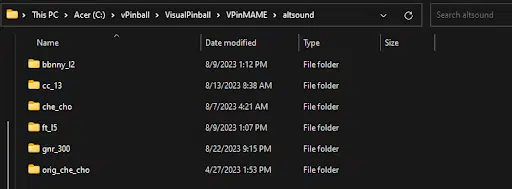
Copy the folder that matches your ROM name into your “altsound” folder. It is located at the root of your VPinMAME installation:
2. Configuring Visual Pinball X
- Launch Visual Pinball X (VPX) and run your game.
- When the game is running, press the F1 key to bring up the options menu.
- Use the TAB key to cycle to "Alt. Sound Mode (0-3)". The value depends on your format:
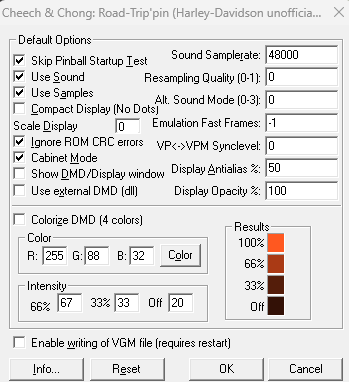
- Enter "1" if the folder contains an
altsound.csvorg-sound.csv. - Enter "1" if the folder contains subfolders (jingle, voice) and you are NOT running PinSound hardware.
- Enter "2" if you are running on actual PinSound hardware (requires PinSound Audio Studio).
When done, hit OK, close VPX, and relaunch your game. You should hear the AltSound playing!
Troubleshooting & Support
AltSound 2 Troubleshooting
Prior to AltSound 2, many users experienced issues with AltSound volumes being too low, or behaving erratically. The reason for this is tied to the way VPinMAME tries to recreate some of the original ROM volume behavior in the AltSound. This does not always work as intended. To maintain backward compatibility, this feature is preserved by default in AltSound 2. However, there is now a workaround:
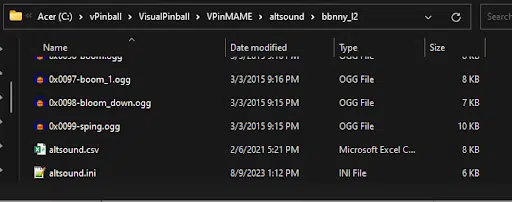
The first time you run a game with AltSound, a .ini file is created that allows you to modify some of the behaviors of AltSound. This file is altsound.ini and is located in the altsound/<ROM name> for your game (G-Sound packages already come with the .ini file):
Open this file and locate the "rom_volume_ctrl" configuration parameter:

Set rom_volume_ctrl to zero and save the file. Do not change any settings that are not in the [system] or [logging] section unless you know what you are doing. Most of the other settings apply only to G-Sound packages.
Getting Help
Devs make mistakes and it’s possible you’ve found one. Help is available, but you must do a little bit to help us help you. If you spot a problem with an AltSound package, here’s what you need to do. As soon as you spot a problem:
- Shut down VPX
- Go to your “tables” folder
- Locate the “altsound.log” file
- Copy it into an empty folder
- Into that same folder add: The
altsound.csvorg-sound.csvfor the game. These are located in the VPinMAMEaltsound/<ROM name>folder - Zip up the folder and create an issue on PinMAME GitHub
- In the issue, describe the problem and attach the zipped file you just created
- Sit back and wait for help
Prioritized Support
If you want to turbocharge your support issue and help ensure a rapid response and solution, there’s a little more you can do before creating your issue. When you spot a problem:
- Shut down VPX
- Go to your VPinMAME
altsound/<ROM name>folder - Open the
altsound.inifile - Set
record_sound_cmdsto "1"

- Set
logging_levelto "Debug" (case doesn’t matter)

- Recreate the problem
- Shut down VPX
- Go to your “tables” folder
- Locate the “altsound.log” file
- Copy it into an empty folder
- Go to your
<VPinMAME>/altsound/<ROM name>folder - Locate the
<ROM name>-cmdlog.txtfile andaltsound/g-sound.csvfile - Copy that into the same folder
- Zip up the folder and create an issue on PinMAME GitHub
- In the issue, describe the problem and attach the zipped file you just created
- Sit back and enjoy expedited help and the eternal gratitude of a Dev!
💎 SUPPORT PRO TIP
Want to always ensure speedy and gracious support? Whenever you install and configure a new AltSound package:
- Run the game briefly to create the
altsound.inifile. This step is only necessary for legacy PinSound and traditional AltSound packages. G-Sound packages will already have a .ini file, so this step can be skipped. - Follow the above instructions to set
logging_level = Debugandrecord_sound_cmds = 1 - Save the ini file.
Now, whenever you find a problem, you always have the extra fuel to ensure turbocharged support
(and don’t forget, the eternal gratitude of a Dev)